The best monitors for eye strain
Every monitor in this category sells a certificate. None of them publishes a flicker figure, and the American Academy of Ophthalmology says screen blue light does not damage your eyes — so we ranked on what you can check: how far the screen moves, what the maker will put in a spec table, and how long it is covered.
By Stephen V.Last reviewed
Compare the five monitors
Column one is ranked on; column two is reported. Every cell is the manufacturer's own published figure or wording, cited in full on our main monitor roundup — and the flicker column is empty for every row on purpose.
| # | Monitor | Height travel | Eye-comfort documentation | Warranty | Flicker figure | Price |
|---|---|---|---|---|---|---|
| 1 | 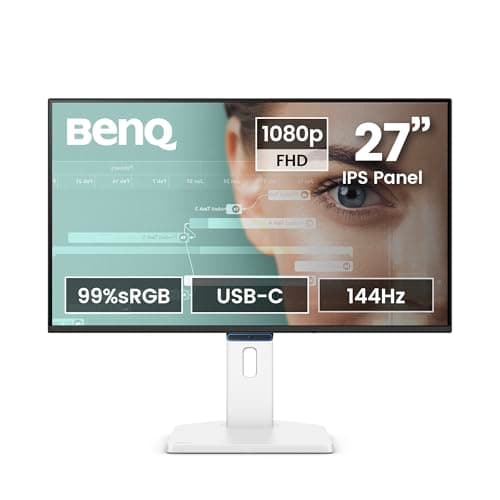 1. BenQ GW2790TC Positioning and disclosure, cheapest
| 150 mm | TÜV Eye Comfort 3.0, EyeSafe 2.0, Low Blue Light, Flicker-free Technology | 3 yr parts | — | |
| 2 | 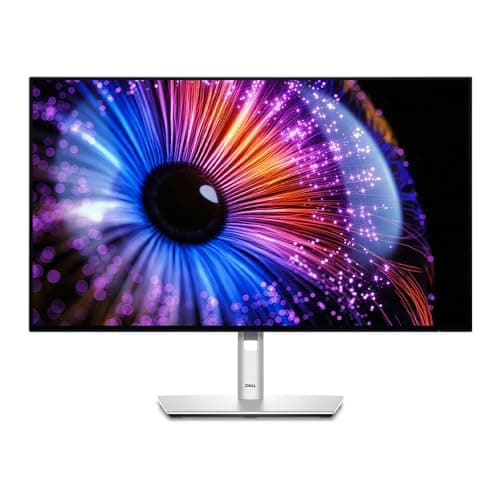 2. Dell UltraSharp 27 Monitor (U2724D) A screen that matches the room it is in
| 150 mm | TÜV 5-star eye comfort; ambient light sensor | 3 yr + panel | — | |
| 3 | 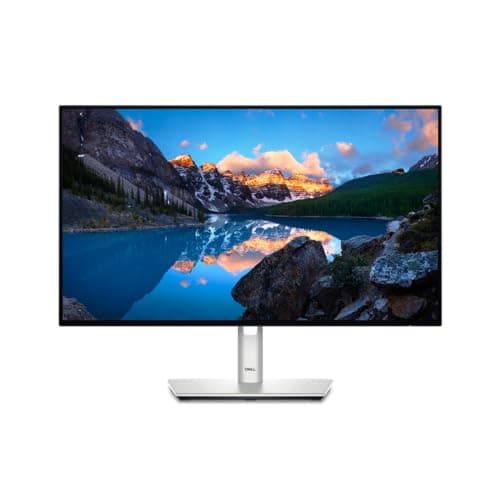 3. Dell UltraSharp 24 Monitor (U2424H) Dell positioning and service, smaller and cheaper
| 150 mm | TÜV 4-star eye comfort | 3 yr + panel | — | |
| 4 | 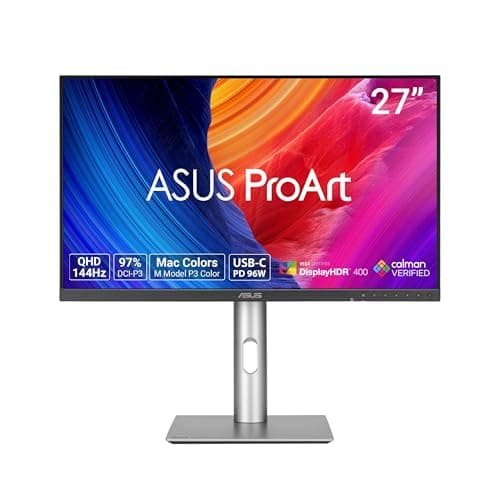 4. ASUS ProArt Display PA278CGRV Spec-sheet disclosure over certificate names
| 0–130 mm | "Flicker-free : Yes", "Low Blue Light : Yes" | 3 yr ZBD | — | |
| 5 | 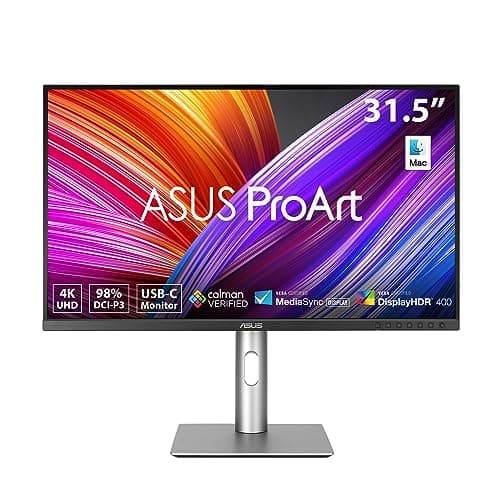 5. ASUS ProArt Display PA329CRV A big screen you can sit further back from
| 0–130 mm | "Flicker-free : Yes", "Low Blue Light : Yes (Hardware Solution)" | 3 yr ZBD | — |
The last column is the point of the page.Not one manufacturer here publishes a flicker measurement — no modulation depth, no PWM frequency — so “flicker-free” is a claim or a certificate on every row, and any site printing a number there is inventing it. The phone-camera check is the only test a buyer can actually run. Column two mixes two different kinds of thing:a third-party certificate (TÜV, EyeSafe) and a line in the maker’s own spec table (ASUS). We rank the certificates slightly higher because a lab assessed them, and we report both rather than blending them into a score. Every figure and date comes from our main monitor roundup, where each panel is researched in full against its maker’s own spec page.
Prices and stock as of October 18, 2026, from Amazon’s API. They change; we show a live number or none at all. #ad — we earn a commission.
Buy the BenQ GW2790TC if you want the most adjustable screen with the most eye-comfort documentation, cheapest. Buy the Dell UltraSharp U2724D if you want the one feature here that addresses a cause of eye strain we can actually evidence: an ambient light sensor that matches the screen to the room.
Now the two things most pages on this topic will not tell you.
Nobody publishes a flicker number, and blue light is not the villain
Search this category and you will be sold two things: flicker-free technology and low blue light. Here is the state of the evidence on both, from the primary sources rather than from each other.
Flicker.Not one manufacturer in our coverage publishes a flicker measurement for any panel — no modulation depth, no PWM frequency, nothing with a unit attached. What they publish is a phrase (“Flicker-free Technology”), a spec-table yes (“Flicker-free : Yes”) or a third-party certificate. Those are claims of different weights and we rank them accordingly, but none of them is a figure, which is why the last column of our table is empty on every row. If you want to test a screen you own, the phone-camera check is the one method available to a buyer, and it works on monitors as well as lamps.
Blue light. The American Academy of Ophthalmology’s position is that there is no scientific evidence that blue light from a screen damages your eyes. We set that out in full in is blue light bad for your eyes and we are not going to contradict our own sourcing to move a monitor. A “Low Blue Light” row on a spec sheet is a real published feature. It is not a health outcome, and the sleep question — which is about timing, not damage — is handled on how desk lighting affects sleep.
So what did we rank on?
The levers that have published numbers on both sides of the comparison.
1. Published height travel.OSHA’s computer workstation guidance asks for the top line of the screen at or below eye level, with the center 15 to 20 degrees below horizontal eye level, and puts the preferred viewing distance at 20 to 40 inches. A monitor’s height-adjustment figure is the spec that decides whether it can be put there. 150 mm is the most on this page; 130 mm is the least; the gap is 20 mm and on a tall desk it is decisive. Our monitor height guide turns the guidance into a target you can measure to.
2. Eye-comfort documentation.What the maker will put in writing, reported as what it is. A third-party certificate (TÜV, EyeSafe) ranks above a line in the maker’s own table, and both rank above marketing prose, which is what most of this category offers.
3. Warranty term.The longevity slot, as everywhere on this site. All five publish three years; what differs is what three years means — advance exchange with a panel policy, parts and labor with no replacement while you wait, or a zero-bright-dot panel promise.
The feature that does more than any certificate
One monitor here publishes an ambient light sensor that Dell describes as automatic brightness and color-temperature adjustment, and it deserves to be called out separately from the certificate column.
The reason is that screen-to-room brightness contrast is one of the few causes of eye strain with a clear mechanism and clear guidance behind it: a screen much brighter than the wall behind it makes your pupils work against two different light levels every time your gaze moves. Our lighting page found the two national bodies most often cited on desk light levels disagreeing by a factor of about 2.6, which tells you how soft the numbers are — but the direction is not in dispute, and bias lighting exists to fix the same problem from the wall side.
A screen that reads the room and follows it is doing that work without you. It is one published feature, on one monitor on this page, and it is worth more to tired eyes at 6pm than a star rating.
Where the monitor stops and the setup starts
This is a page about monitors, so it is worth being honest that the monitor is not usually the main variable. Our own guides keep landing on the same four levers: distance, height, screen-to-room brightness, and how often you look away. Three of those are free, and the fourth is a lamp.
What a monitor can do is make the first two possible. A screen with 150 mm of travel on a 29-inch desk can be brought to your eye line; a screen on a fixed stand on a tall desk cannot, and no certificate changes that. If your panel is already bought and it will not go low enough, a monitor armis the cheaper fix than a new monitor — check the panel-only weight against the arm’s published window first, and whether the arm fits your desk second.
And if the complaint is specifically that your eyes hurt in the evening, start with the room rather than the screen: a desk lamp with real published figures behind it is a smaller purchase than a monitor and sits on the side of the contrast equation most people never touch.
What we can’t tell you
We have not used any of these monitors for a working week, and nothing on this page is a measurement of ours. We cannot tell you whether a particular panel flickers at a rate your eyes notice, whether TÜV’s fifth star is distinguishable from its fourth, whether the BenQ’s 1080p text tires you at 27 inches, or whether Dell’s ambient sensor settles at a brightness you like. Those need your eyes, your room and time. What we can do is separate the figures from the claims, rank on the ones with evidence on both sides, and leave a column empty where the industry has nothing to put in it. Our methodology explains why we would rather publish the empty column than fill it.
The picks, in detail
1. Positioning and disclosure, cheapest
BenQ GW2790TC
150 mm of height travel — the most on this page — plus the longest list of published eye-comfort certificates of any monitor we cover, at the lowest price here. The panel is 1080p at 27″, which is the trade you are making.
- Height adj
- 150 mm
- Panel wt
- 4.2 kg
- Warranty
- 3 yr parts
It is first because it wins on the spec this page ranks on and the one it ranks second on, at the same time. BenQ publishes 150 mmof height adjustment — enough travel to bring the top of the screen down to or below your seated eye line instead of stacking it on books — and it publishes more eye-comfort documentation than anything else in our coverage: TÜV Eye Comfort 3.0, EyeSafe 2.0, Low Blue Light and “Flicker-free Technology”, listed on the spec page rather than buried in marketing copy.
Be clear about what that list is. Those are certificates and a named technology, not measurements: there is no modulation depth, no PWM frequency, no figure of any kind behind “flicker-free” on this or any other monitor we have read. It is still the most any maker here has committed to in writing, and a certificate from a third-party lab is a stronger thing than a sentence in a product description.
The warranty is three years, parts and labor, from BenQ’s own US warranty page — but the spec page publishes no term at all, and the warranty page says “parts and labor only (No advance replacement)”. A failure means being without the screen while it is repaired, where Dell’s service sends a replacement first.
And the honest catch: this is a 1080p panel at 27 inches, in a market where 1440p exists at this size. Pixel density is part of how comfortable text is to read all day, and it is the one eye-comfort-adjacent thing this monitor does not lead on. If text sharpness is your complaint rather than screen position, the Dell below it is the better answer.
Good
- 150 mm of height adjustment at the cheapest price on this page — the spec that usually disappears first when a monitor gets cheap, and the one that decides whether it fits you
- Tilt runs -5˚ to 35˚, a wider forward-and-back range than any Dell here, plus 45˚/45˚ swivel and 90˚ pivot
- TÜV certificates listed explicitly on the spec page — Eye Comfort 3.0, EyeSafe 2.0 and Low Blue Light — alongside “Flicker-free Technology”, which for a budget panel is more disclosure than the category norm
- Three years of parts and labor, published on BenQ's own US warranty page, on a monitor that costs a fraction of the UltraSharps
- 4.2 kg without the base — roughly 9.3 lb by our conversion — so a mid-range arm handles it comfortably
Not so good
- 1920 x 1080 across 27 inches. That is the coarsest pixel grid on this page by a distance, and no feature list compensates: text is simply softer than on the QHD and 4K picks
- USB-C power delivery is 20W. That charges a phone, not a laptop — do not buy this expecting one-cable docking
- BenQ's warranty page states “parts and labor only (No advance replacement)”, so a failure means being without your screen while it is repaired, unlike Dell's advance-exchange service
- BenQ publishes the weight without the base in kilograms only on the US spec page, so the pound figure you need for an arm's rating is a conversion you (or we) have to do
- The spec page publishes no warranty period at all — you have to go to a separate warranty page to find the three-year term, which is a documentation gap even though the answer is a good one
Don’t buy it if: you read text all day and you can stretch. 1080p at 27 inches is the compromise in this monitor, and it is the one you will look at for eight hours. The U2424H gives you the same resolution on a smaller, sharper screen; the U2724D gives you a sharper one at the same size.
$179.99 −17%
Price as of October 18, 2026. #ad — we earn a commission.
Where these numbers came from
- BenQ GW2790TC Specifications — BenQ's own US spec page (source of the 27″ IPS panel, 1920x1080 at 144 Hz, the “Height Adjustment : 150 mm”, the -5˚–35˚ tilt, 45˚/45˚ swivel and 90˚ pivot, the 100x100 mm VESA wall mount, the 6.7 kg net weight and 4.2 kg net weight without base, the 20W USB-C power delivery, the TÜV Eye Comfort 3.0 / EyeSafe 2.0 / Low Blue Light certificates and Flicker-free Technology; the spec page states no warranty period) — read 2026-09-15
- BenQ GW2790TC Warranty — BenQ's own US warranty page (“Three (3) year from the purchase date by the original retail purchaser”, “parts and labor only (No advance replacement)”) — read 2026-09-15
2. A screen that matches the room it is in
Dell UltraSharp 27 Monitor (U2724D)
The only monitor here with an ambient light sensor Dell describes as automatic brightness and color-temperature adjustment — which is the eye-strain lever that actually has evidence behind it — on 150 mm of travel, a 1440p 120 Hz IPS Black panel and a TÜV 5-star eye comfort certificate.
- Height adj
- 150 mm
- Panel wt
- 9.90 lb
- Warranty
- 3 yr + panel
Of everything published across these five spec sheets, the feature most likely to change how your eyes feel at 5pm is on this one: an ambient light sensor, which Dell describes as “auto brightness and color temperature adjustment”.
That matters because the contrast between a bright screen and a dim room is one of the few causes of eye strain our own research could actually pin down — how to reduce eye strain at a computer works through it, and our lighting page shows the two national bodies most often cited disagreeing about room light levels by a factor of about 2.6. A screen that adapts its own output to the room is doing, automatically, the thing we otherwise ask you to do with a lamp.
The rest is the strongest all-round spec here: 150 mm of height travel, 2560 x 1440 at 120 Hz on an IPS Black panel, 9.90 lb panel-only weight published for arm mounting, and 3-Year Advanced Exchange Service with Premium Panel Exchange.
Its eye-comfort claim is thinner than the BenQ’s, and in exactly one way: Dell states the panel is “certified by TÜV for 5-star eye comfort” and publishes no flicker specification of its own. So the claim rests entirely on the certificate. Five stars is the top of TÜV’s scale and it is a real third-party assessment — it is just not a number you can compare against another panel.
Good
- 150 mm (5.9″) of height travel, the most on this page alongside the other Dells and the BenQ — enough range that the top of the screen can be brought to or below your seated eye line instead of you adapting to it
- Dell publishes the number a monitor arm actually needs and labels it plainly: “weight (panel only - for VESA mount)” 9.90 lb, against 14.46 lb with the stand. Almost nothing else in the category is that explicit
- Full rotation set — -5°/+21° tilt, ±45° swivel, ±90° pivot — so it turns portrait without an arm, which matters if you read long documents or code
- 3-Year Advanced Exchange Service plus Premium Panel Exchange: Dell ships the replacement before you send the old one back, and the panel term is separate cover for the part most likely to fail visibly
- 2560 x 1440 at 120 Hz on an IPS Black panel, with an ambient light sensor Dell describes as “auto brightness and color temperature adjustment” — the same idea as the lamp half of a well-lit desk, handled by the screen
Not so good
- The USB-C upstream port is listed by Dell as “data only”. It will not carry video and it will not charge a laptop. If you want one cable to your laptop, this is the wrong model in the line and the U2725QE below is the right one
- QHD, not 4K. At 27 inches that is a visibly coarser pixel grid than the 4K picks here, and no amount of stand travel changes it
- Using the built-in USB hub means running a second cable to the computer alongside the DisplayPort or HDMI lead, because the upstream port is data only. “Fewer cables” is not one of the reasons to buy this one
- Dell's page states the panel is “certified by TÜV for 5-star eye comfort” but publishes no flicker specification of its own, so the eye-comfort claim rests on the certificate rather than on a figure you can compare
- It is a plain gray office monitor with no speakers worth the name. Nobody buys this one for the look of it
Don’t buy it if: you want to run your laptop down one cable. Dell marks this model's USB-C upstream port “data only”, so the video still has to come over DisplayPort or HDMI and the laptop still needs its own charger. Buy the U2725QE for that, or accept two cables and save the difference.
Price as of October 18, 2026. #ad — we earn a commission.
3. Dell positioning and service, smaller and cheaper
Dell UltraSharp 24 Monitor (U2424H)
The cheapest way to get 150 mm of Dell travel, the advance-exchange service and a TÜV eye comfort certificate — 4-star rather than 5, on a 1080p panel at 23.8″ where the density penalty is much smaller.
- Height adj
- 150 mm
- Panel wt
- 7.76 lb
- Warranty
- 3 yr + panel
At 23.8 inches, 1080p is a far less painful compromise than it is at 27 — the pixels are packed into less area, so text holds up. And you keep the two things the expensive Dell is actually good at for this page: 150 mm of height travel and the 3-Year Advanced Exchange Service with Premium Panel Exchange.
Dell states it is “certified by TÜV for 4-star eye comfort” and ENERGY STAR certified, and runs the panel at 120 Hz rather than the 60 Hz an office monitor at this size often settles for. Four stars against the U2724D’s five is a published difference in a third-party rating, which is the honest way to describe it: one step down a scale, not a measured gap in flicker or blue-light output, because neither monitor publishes one.
What you give up against the pick above it is the ambient light sensor and the 1440p panel. If your room has stable light and your text is small, that may be the right saving. If the screen is the brightest thing in a dim room every evening, it is not.
Good
- 7.76 lb panel-only weight — the lightest here, and inside the published range of every monitor arm this site ranks, though still above the 7 lb minimum an Ergotron LX needs to stay put. The minimum, not the maximum, is the spec people miss
- The full 150 mm of stand travel and the complete tilt/swivel/pivot set, on a screen small enough for a desk that cannot push a 27-inch panel far enough back
- 23.8 inches at 1920 x 1080 is a comfortable pixel density — the same panel resolution that looks coarse at 27 inches looks fine here
- 3-Year Advanced Exchange Service with Premium Panel Exchange, identical cover to the 27-inch UltraSharps
- Dell states it is “certified by TÜV for 4-star eye comfort” and ENERGY STAR certified, and the panel runs at 120 Hz rather than the 60 Hz an office monitor at this size often settles for
Not so good
- It is a 1080p monitor at a price where 1440p panels exist. You are buying the stand, the ports and the warranty, and the panel is the part you are not getting a bargain on
- 24 inches is genuinely small if you keep two documents side by side. Before you choose it over a 27, check the actual depth of your desk — the size question is a distance question first
- Only one screen's worth of space means you will likely want a second one eventually, and two 24s on one desk is a different purchase from one 27
- Like the U2724D, its USB-C provision is not a laptop-charging dock — if one-cable docking is the goal, this is not the model
- No speakers worth using, and the styling is pure corporate refresh-cycle
Don’t buy it if: your desk is 30 inches deep or more and you have the room. At that distance a 27-inch screen is the better use of the space, and OSHA's preferred viewing range tops out at 40 inches — you are not going to run out of room for the bigger panel. Buy the 24 when the desk, not the budget, is the constraint.
Price as of October 18, 2026. #ad — we earn a commission.
4. Spec-sheet disclosure over certificate names
ASUS ProArt Display PA278CGRV
The only monitor here whose maker puts flicker-free and low blue light in the spec table as explicit lines rather than certificate names — and the one that gives up 20 mm of height travel to do it.
- Height adj
- 0–130 mm
- Panel wt
- 4.7 kg
- Warranty
- 3 yr ZBD
There is a documentation distinction worth paying for on this page, and this monitor is the one that makes it. ASUS’s own technical specification page carries “Flicker-free : Yes” and “Low Blue Light : Yes” as table rows. Most makers put flicker language in marketing prose and leave the spec table alone; a line in a spec table is the thing a company has to stand behind.
It is still not a measurement. “Yes” is a yes, not a modulation depth, and the only way to check flicker yourself is the phone-camera test in what flicker-free actually means. But it is an unusually plain way to publish the claim, and it comes with real figures either side of it: 100% sRGB, 97% DCI-P3, 96W of USB-C power delivery, a 144 Hz maximum refresh rate and a published 3-year zero-bright-dot warranty.
The cost is the one number this page ranks on first. 0–130 mmof height adjustment is 20 mm less travel than the three monitors above it. For eye strain specifically, travel is the spec that lets the screen meet your eyes rather than the other way around — our monitor height guide has the target, and a monitor arm removes the limit entirely if you would rather buy this panel and mount it.
Good
- ASUS publishes the gamut numbers plainly — “Color Space (sRGB) : 100%” and “Color Space (DCI-P3) : 97%” — which is more than most makers in this bracket print anywhere
- 96W USB-C power delivery: one cable to a laptop, at a fraction of the Thunderbolt Dell's price
- “Net Weight without Stand : 4.7 kg (10.36 lbs)” — published in both units, unprompted, which is exactly the number an arm needs
- “Flicker-free : Yes” and “Low Blue Light : Yes” as explicit spec-sheet lines rather than marketing prose, and a 144 Hz maximum refresh rate that a 60 Hz office panel cannot match
- The LCD ZBD warranty is published as three years — zero bright dot, which is a stated panel-defect promise rather than a general hardware term
Not so good
- Height adjustment is “0~130mm”, 20 mm less travel than the Dells and the BenQ. On a tall desk or for a tall sitter that is the difference between reaching your eye line and not
- Swivel is +30°/-30° against the Dells' ±45°, so it turns less far toward a second person or a second screen
- QHD at 27 inches, same pixel density as the U2724D — this is not the pick if you want 4K text
- ASUS publishes the three-year term as an “LCD ZBD Warranty” on the spec sheet rather than spelling out a full advance-exchange service the way Dell does. Read what your retailer's service actually includes before you count on it
- At 6.6 kg with the stand it is a solidly heavy 27-inch monitor, and the color-work positioning means you are paying something for gamut coverage you may never use for spreadsheets
Don’t buy it if: your eye line needs the last 20 mm. ASUS publishes "Height Adjustment : 0~130mm" against 150 mm on the Dells and the BenQ, and on a tall desk or for a tall sitter that is the difference between the screen reaching your eye line and you adapting to it.
$299.00 −17%
Price as of October 18, 2026. #ad — we earn a commission.
5. A big screen you can sit further back from
ASUS ProArt Display PA329CRV
A 31.5″ 4K panel with "Low Blue Light : Yes (Hardware Solution)" published on the spec sheet — the only hardware qualifier any maker here adds — and the most screen area to sit back from. Same 130 mm travel limit as its smaller sibling.
- Height adj
- 0–130 mm
- Panel wt
- 6.7 kg
- Warranty
- 3 yr ZBD
The eye-strain argument for a bigger screen is not the screen; it is the distance. OSHA’s own workstation guidance puts the preferred viewing distance at 20 to 40 inches, and a 31.5-inch 4K panel is the one on this page you can push to the far end of that range and still read comfortably — how far a monitor should be from your eyes is the full version, including why “arm’s length” is usually too close.
On the documentation side it publishes the most specific low-blue-light line of anything here: “Low Blue Light : Yes (Hardware Solution)”, which distinguishes a panel-level implementation from a software filter. Same “Flicker-free : Yes” row and the same published 3-year zero-bright-dot warranty as the 27-inch model, with 100% sRGB and 98% DCI-P3 either side of it.
Two honest limits. Travel is 0–130 mmagain, the shortest on the page, which on the physically tallest screen here is the least convenient place to find it. And a 32-inch panel needs desk depth to sit at 40 inches — how deep a desk should be is the check to run before you buy it, because a screen you cannot get far enough away from is an eye-strain problem you bought on purpose.
Good
- 31.5 inches at 3840 x 2160 — one screen that holds two documents side by side legibly, which is the actual reason most people end up with two monitors
- “Color Space (sRGB) : 100%” and “Color Space (DCI-P3) : 98%”, published as figures, on a 4K panel
- 96W USB-C power delivery, so it docks a laptop down one cable like its 27-inch sibling
- “Net Weight without Stand : 6.7 kg (14.77 lbs)” — published, in both units, which on a 32-inch screen is the difference between choosing an arm confidently and guessing
- “Flicker-free : Yes” and “Low Blue Light : Yes (Hardware Solution)” on the spec sheet, plus the same published three-year zero-bright-dot warranty as the PA278CGRV
Not so good
- 60 Hz. Every other monitor on this page runs at 120 Hz or better, and on a screen this size the difference in pointer motion is the most visible thing about it
- 14.77 lbs of head lands at the very top of the narrowest arm range we have ranked (4.4–15.4 lb) and rules out anything rated below it. A 32-inch screen effectively picks your arm for you, which is an add-on cost the lighter picks here do not carry
- 130 mm of travel on a 31.5-inch panel means the bottom bezel sits high even at the lowest setting, because the panel itself is tall. Shorter sitters should measure before buying
- A 32-inch screen needs to sit further back to stay inside OSHA's 20–40 inch window and its 35-degree side limit. On a 24-inch-deep desk it is the wrong purchase no matter how good it is
- Heavier and pricier than the 27-inch picks, with no docking or refresh advantage over the cheaper PA278CGRV — the area is the whole argument
Don’t buy it if: your desk is less than about 30 inches deep, or you are buying for pointer-heavy work. A 32-inch panel too close is worse than a 27-inch panel at the right distance, and the 60 Hz refresh is the lowest on this page.
Price as of October 18, 2026. #ad — we earn a commission.
Common questions
Does a low blue light monitor prevent eye damage?
No, and we are not going to imply otherwise to sell one. The American Academy of Ophthalmology’s position is that there is no scientific evidence that blue light from a screen damages your eyes — is blue light bad for your eyes goes through what the authorities actually say, including why blue-light glasses are a weak buy and why the sleep question is a separate one about timing. A “Low Blue Light” line on a spec sheet is a published feature of the panel, not a medical benefit. It is reported in our table for that reason and ranked below height travel.
What monitor setting actually helps with eye strain?
The ones that cost nothing: screen distance, screen height, brightness relative to the room, and how often you look away from it. OSHA’s workstation guidance puts the preferred viewing distance at 20 to 40 inchesand asks for the top line of the screen at or below eye level. That is why this page ranks on published height travel — it is the spec that decides whether a monitor can be put where the guidance says, without a stack of books. How to reduce eye strain at a computer covers the free fixes, and how often to take breaks handles the one most people skip.
Is 1080p worse for your eyes than 1440p?
Nobody publishes a figure that would settle that, so treat it as a preference with a mechanism rather than a fact. The mechanism is pixel density: the same 1080p grid stretched over 27 inches has visibly larger pixels than over 23.8 inches, and text rendered on larger pixels has softer edges. Whether softer edges tire your eyes is personal. What we can say is that the two 1080p monitors on this page differ in size by three inches, which is the honest reason the 23.8-inch Dell is ranked above the 27-inch BenQ on panel grounds and below it on everything else.
Should I buy a monitor arm instead of paying for height travel?
It is often the better purchase, and it is why the 130 mm ASUS panels are still on this page. A 150 mmstand gives you a fixed window of travel; an arm removes the ceiling and lets you set depth and tilt as well, which are the other two levers OSHA’s guidance names. The figure to check first is the panel-only weight, which every monitor here publishes — our monitor arms roundup ranks arms on their published weight windows, and will a monitor arm fit my desk is the check to run before you order one.
Sources
Every figure on this page comes from one of these. If a manufacturer doesn’t publish a number, we print “—” rather than estimate it.
- BenQ GW2790TC Specifications — BenQ's own US spec page (source of the 27″ IPS panel, 1920x1080 at 144 Hz, the “Height Adjustment : 150 mm”, the -5˚–35˚ tilt, 45˚/45˚ swivel and 90˚ pivot, the 100x100 mm VESA wall mount, the 6.7 kg net weight and 4.2 kg net weight without base, the 20W USB-C power delivery, the TÜV Eye Comfort 3.0 / EyeSafe 2.0 / Low Blue Light certificates and Flicker-free Technology; the spec page states no warranty period) — read 2026-09-15
- BenQ GW2790TC Warranty — BenQ's own US warranty page (“Three (3) year from the purchase date by the original retail purchaser”, “parts and labor only (No advance replacement)”) — read 2026-09-15
- Dell UltraSharp 27 Monitor — U2724D, Dell's own US product page (source of the 2560 x 1440 at 120 Hz IPS Black panel, the 150 mm maximum adjustable height, the -5°/+21° tilt, -45°/+45° swivel and -90°/+90° pivot, the 100 mm x 100 mm VESA pattern, the 9.90 lb “weight (panel only - for VESA mount)” and 14.46 lb weight with stand, the port list including “1 x USB-Type C upstream port (data only)”, the ambient light sensor, the TÜV 5-star eye comfort certification, and the 3-Year Advanced Exchange Service with Premium Panel Exchange) — read 2026-09-15
- Dell UltraSharp 24 Monitor — U2424H, Dell's own US product page (source of the 23.8″ viewing size, the 1920 x 1080 at 120 Hz IPS panel, the 150 mm maximum adjustable height, the -5°/+21° tilt, -45°/+45° swivel and -90°/+90° pivot, the 100 mm x 100 mm VESA pattern, the 7.76 lb panel-only weight and 11.86 lb weight with stand, the TÜV 4-star eye comfort certification, and the 3-Year Advanced Exchange Service with Premium Panel Exchange) — read 2026-09-15
- ASUS ProArt Display PA278CGRV — ASUS's own US technical specification page (source of the 27″ IPS panel, 2560x1440 at a 144Hz maximum refresh rate, the “Color Space (sRGB) : 100%” and “Color Space (DCI-P3) : 97%” figures, the “Height Adjustment : 0~130mm”, the +23°/-5° tilt, +30°/-30° swivel and +90°/-90° pivot, the 100x100mm VESA pattern, the 6.6 kg (14.55 lbs) net weight and 4.7 kg (10.36 lbs) net weight without stand, the 96W USB-C power delivery, “Flicker-free : Yes”, “Low Blue Light : Yes”, and “LCD ZBD Warranty : Yes(3 yr)”) — read 2026-09-15
- ASUS ProArt Display PA329CRV — ASUS's own US technical specification page (source of the 31.5″ IPS panel, 3840x2160 at 60Hz, the “Color Space (sRGB) : 100%” and “Color Space (DCI-P3) : 98%” figures, the “Height Adjustment : 0~130mm”, the +23°/-5° tilt, +30°/-30° swivel and +90°/-90° pivot, the 100x100mm VESA pattern, the 9.9 kg (21.83 lbs) net weight and 6.7 kg (14.77 lbs) net weight without stand, the 96W USB-C power delivery, “Flicker-free : Yes”, “Low Blue Light : Yes (Hardware Solution)”, and “LCD ZBD Warranty : Yes(3 yr)”) — read 2026-09-15
Read next
Ergotron HX vs LX
If the stand will not go low enough, the arm is the cheaper fix - and these two published weight windows decide which one holds your panel.
Is blue light bad for your eyes?
Read this before you pay a premium for a low-blue-light panel — the AAO says screen blue light does not damage your eyes.
How to reduce eye strain at a computer
The fixes that cost nothing: distance, height, screen-to-room brightness and how often you look away.
Lighting for eye strain
Where we found the two national bodies most often cited disagreeing about desk light levels by a factor of about 2.6.
The best monitors for a home office
Where all five of these panels are researched in full, ranked on stand travel, panel-only weight and warranty.
Monitor height guide
The target this page's first column is measured against, with the OSHA wording it comes from.