The best monitors for a home office
Nobody can measure a panel for you from a spec sheet, so we did not try. We ranked on the three numbers that decide whether a screen reaches your eyes, fits your monitor arm and is still covered in three years — and every one of them is published, cited and checkable.
By Stephen V.Last reviewed
Quick picks
Ranked, with the manufacturer’s own longevity figure next to each one. Tap a row to jump to the full write-up.
| # | Product | Best for | Longevity | Price |
|---|---|---|---|---|
| 1 | 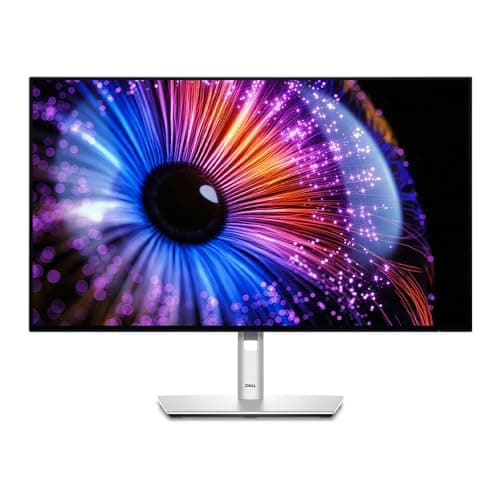 Dell UltraSharp 27 Monitor (U2724D) The most complete set of published numbers in the category: 150 mm of stand travel, a panel-only weight Dell actually labels as such, and three years of advance-replacement cover with a panel guarantee on top. Its one real trap is the USB-C port, which Dell's own spec sheet marks data only. | The default 27-inch desk | 3 yr + panelWarranty | |
| 2 | 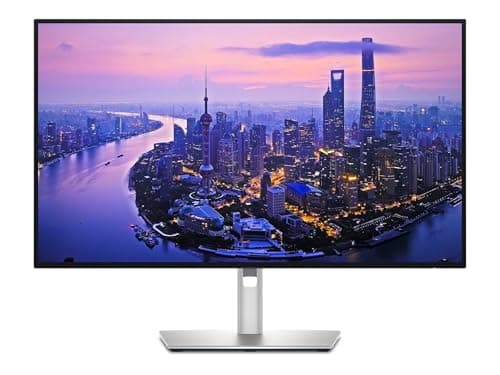 Dell UltraSharp 27 4K Thunderbolt Hub Monitor (U2725QE) The one-cable version of the pick above: 4K at 120 Hz, the same 5.91 inches of stand travel, and Thunderbolt power delivery Dell rates at up to 140W EPR — enough to run and charge most laptops down a single lead. It is the most expensive monitor here by a wide margin. | A laptop and one cable | 3 yr exchangeWarranty | |
| 3 | 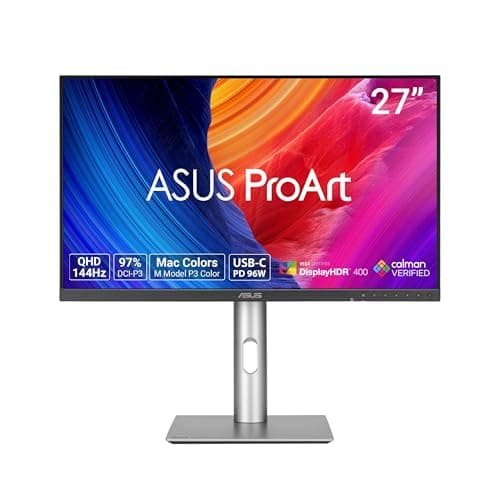 ASUS ProArt Display PA278CGRV The color-work pick, and the one monitor here whose maker publishes a flicker-free line and a gamut figure in the same table: 100% sRGB, 97% DCI-P3, 96W of USB-C power delivery and a three-year zero-bright-dot warranty. It gives up 20 mm of stand travel to the Dells. | Color work on a budget | 3 yr ZBDWarranty | |
| 4 | 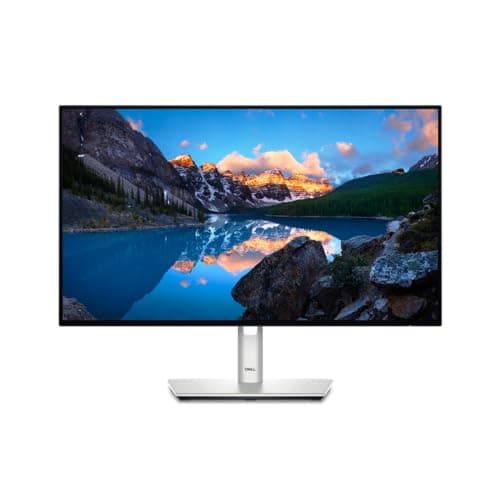 Dell UltraSharp 24 Monitor (U2424H) The pick for a shallow desk. A 23.8-inch screen with the full UltraSharp stand — 150 mm of travel, full pivot — and the lightest head here at 7.76 lb, which puts it inside the range of even modest monitor arms. You are paying UltraSharp money for a 1080p panel, and that is the whole argument against it. | Shallow desks and small rooms | 3 yr + panelWarranty | $232.99Amazon $244.99 −5% |
| 5 | 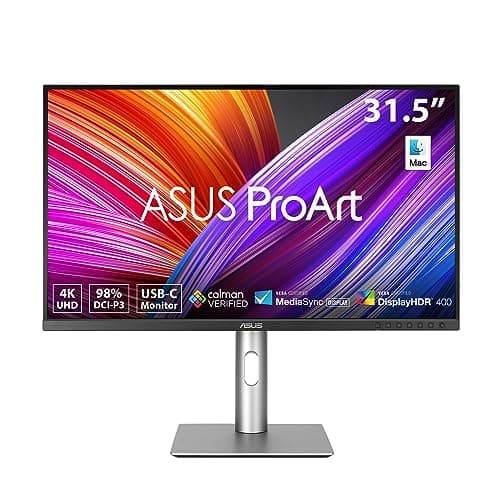 ASUS ProArt Display PA329CRV The big screen, for a deep desk: 31.5 inches of 4K with 98% DCI-P3, 96W USB-C and a published head weight of 6.7 kg. It runs at 60 Hz, it is the heaviest thing here by some way, and the 130 mm stand is the same travel ASUS gives its 27-inch model despite the much larger panel. | A deep desk and one big screen | 3 yr ZBDWarranty | $568.99Amazon $599.00 −5% |
| 6 | 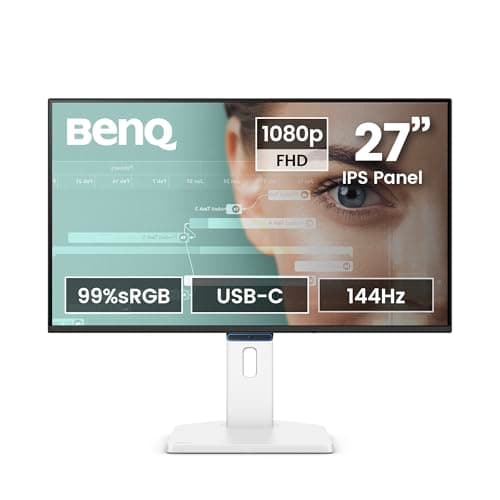 BenQ GW2790TC The cheapest monitor here by a wide margin, and the only cheap one with a full 150 mm stand instead of a tilt-only base. BenQ publishes three years of parts and labor with no advance replacement, and the panel is 1080p at 27 inches — which is the honest reason it costs what it does. | The smallest sensible spend | 3 yr partsWarranty | $149.99Amazon $179.99 −17% |
Prices as of Sep 15, 2026, from Amazon’s API. They change; we show a live number or none at all.
Every “best monitor” list is a verdict on a panel: how the color looks, how the contrast holds, how the motion reads. We cannot give you that one. We have not put a colorimeter on any of these screens, and a judgment about how a panel looks from someone who has not looked at it is an invented judgment.
So this page ranks on the part of a monitor that ispublished, checkable, and — for a home office specifically — the part that most often turns out to be wrong after a week: the stand, the weight and the warranty. Whether the screen can reach your eye line. Whether the head is light enough for an arm to hold. Whether anyone will help you in year three.
Those three are the difference between a monitor that is comfortable for eight hours and one you keep shimming with a hardback book. They are also, conveniently, the three a buyer can verify at the manufacturer’s own page before spending anything — which is the only kind of claim this site makes.
What we ranked on, and why
OSHA sets the target we are aiming the hardware at. Its Computer Workstations guidance says to “place monitor so top line of screen is at or below eye level”, to keep the center “15 to 20 degrees below horizontal eye level”, and to sit it “at least 20 inches away”, with “the preferred viewing distance … between 20 and 40 inches (50 and 100 cm)”. Nothing in that description is about the panel. All of it is about where the screen physically sits. So:
- Stand height travel. The published range the stand moves through, in millimeters or inches as the maker states it. This is the ranking spec, because it is what decides whether the screen comes to your eye line or you go to its.
- Panel-only weight.What the head weighs with the stand removed — the number a monitor arm’s rated range has to cover. It is the single most useful figure on a monitor spec sheet and the one most often missing from it.
- Warranty.The longevity slot, as on every page here. A monitor is a five-to-ten-year object. Three years of advance exchange and three years of send-it-in repair are both “three years” and they are not the same promise, so we say which is which.
What we deliberately did not rank on: color accuracy, contrast, response time, HDR performance, speaker quality and looks. Not because they do not matter — several of them matter a great deal — but because every one of them requires either instruments or eyes on the unit, and we have neither. Where a maker publishes a gamut figure we quote it as their claim, and we do not tell you whether they hit it.
The number your monitor arm needs, and who prints it
If you take one thing from this page, take this: the weight on the box is not the weight your arm cares about.
A monitor arm is rated for the head— the panel with the stand removed. The figure printed largest in most listings is the shipping weight or the weight with the stand attached, and on the monitors here that gap runs to four or five pounds. Buy an arm against the wrong number and you get a screen that sags overnight or a gas spring that will not hold at full extension. This is the same mistake the VESA and weight ratings guide is about, approached from the monitor’s end.
The makers here split on how plainly they answer it. Dell labels the field “weight (panel only - for VESA mount)”on the U2724D (9.90 lb) and the U2424H (7.76 lb) — about as unambiguous as a spec sheet gets. ASUS publishes “Net Weight without Stand” in kilograms andpounds on both ProArts. BenQ publishes it in kilograms only. And on Dell’s own U2725QE page the same field loses its label entirely: it reads “Weight (Approximate)” 11.51 lb beside “Weight with Stand (Approximate)” 15.56 lb, with nothing telling you which mounting scenario the smaller number belongs to. We have used 11.51 lb and told you the label is vaguer, which is the honest version of the same sentence.
Every monitor here has a real stand. Most monitors do not
The reason there is no genuinely cheap 4K screen on this page is not snobbery about panels. It is that the first thing a monitor loses when it gets cheap is the stand.
Tilt-only stands are common at the bottom of the market: the screen pivots forward and back a few degrees and sits at exactly one height forever. That height was chosen by a factory that has never met you, and it is why so many home-office screens end up propped on a stack of books or a shoebox. A monitor with 150 mm of travel and a mediocre panel will be easier to sit at for eight hours than a beautiful panel bolted at the wrong height.
So the floor for this page was a published height-adjustment figure, and the cheapest pick that cleared it is the BenQ — 150 mm of travel on a monitor costing a fraction of the UltraSharps, with a 1080p panel as the trade. If your budget is tight, that is the trade we would make: buy the adjustment, accept the pixels. If your budget is not tight, buy both.
The alternative route is a monitor arm, which makes the stand irrelevant and gives you back the desk underneath. That is a genuinely good answer — and it is the reason the panel-only weights above matter more than they look.
USB-C is not a specification
Four of the six monitors here have a USB-C port. They do four different things, and the port shape tells you none of it.
Dell’s U2724D lists “1 x USB-Type C upstream port (data only)”— no video, no charging. The BenQ carries 20W of power delivery, which will keep a phone alive and nothing larger. Both ProArts publish 96W, which runs and charges most working laptops. The Thunderbolt Dell publishes “up to 140W EPR”, the most headroom here.
If the goal is one cable from your laptop to the desk — and it is a good goal, because it removes the dock, the charger and everything they drag with them — then read the wattage before the price. The difference between a data-only port and a 96W one is the difference between this being a monitor and this being your whole docking setup. The laptop dock cable guide covers what the rest of that mess looks like.
What the money actually buys
Roughly, and in the order the money gets spent: first the stand, then the pixels, then the dock, then the service.
The cheapest pick here already buys you the full stand travel, which is why it is here. Moving up from it buys pixel density — 1440p, then 4K — which is the upgrade you notice most if you read text all day. Moving up again buys the docking hub, which is worth real money if your computer is a laptop and nothing at all if it is a tower. And running underneath all of it is the service term: Dell’s advance exchange sends the replacement before the failure leaves your desk, while BenQ’s three years are “parts and labor only (No advance replacement)”. Same number of years, different week when something breaks.
What the money does not buy in this category is adjustment beyond a point. Nothing here goes past 150 mm of travel, and the most expensive monitor on the page has exactly the same range as the cheapest. Above a certain price you are buying the panel and the ports, not the ergonomics — which is worth knowing before you assume the expensive one will fit you better.
What we did instead of testing
We read the manufacturers’ own US product and specification pages, pulled the three numbers that decide fit and longevity, and linked every one so you can check us. That is the whole method, and our methodology page is blunt about what it does and does not cover.
For monitors, what it does not cover is most of what a reviewer with instruments would tell you: whether a panel’s uniformity is good, whether its backlight is even, whether “flicker-free” holds at low brightness, whether the coating reflects your window back at you. Where a maker publishes a certificate or a gamut figure we report it as theirs. For the rest, a measurement site with hardware is the right next stop, and we would rather say so than pretend our reading covers it.
No Spec Line slot on this page is empty, which is unusual here and worth noting: monitor makers document their stands better than lamp makers document their lumens or desk brands document their frames. Every figure above came from the maker’s own page on the date in the Sources block, and where one of them labeled a field loosely, we said so rather than smoothing it over.
How to actually choose
Do the free part first. Measure your desk’s depth and work out your seated eye line from the monitor height guide. Those two numbers eliminate most of this page before you look at a price.
If the desk is deep enough for a 27 and your computer is a tower or already has its own charger, buy the U2724D— the most complete documentation here and the best service terms. If your computer is a laptop and you want one cable, buy the U2725QE and treat the hub as most of the price. If your work has colors in it, the ProArt PA278CGRV publishes the gamut and gives up 20 mm of stand travel to get there. If the desk is shallow, the U2424H is the right size with the wrong resolution for the money, and it is still the right call. If the desk is deep and you want one screen instead of two, the ProArt PA329CRVis the area buy — with a heavy-duty arm budgeted, because 14.77 lbs is past most standard ones. And if money is the constraint, the BenQ GW2790TC gets the geometry right at the lowest price here, which is the part that matters most.
Then set it properly. The screen goes to your eye line, not your eye line to the screen — ergonomic desk setup has the order, and it starts with the desk, not the monitor. And once the screen is placed, deal with the room it sits in: a bright panel in a dark room is the cheapest screen-comfort problem to fix and the one no monitor purchase solves. Lighting for eye strain is the other half of this buy.
The picks, in detail
1. The default 27-inch desk
Dell UltraSharp 27 Monitor (U2724D)
The most complete set of published numbers in the category: 150 mm of stand travel, a panel-only weight Dell actually labels as such, and three years of advance-replacement cover with a panel guarantee on top. Its one real trap is the USB-C port, which Dell's own spec sheet marks data only.
- Height adj
- 150 mm
- Panel wt
- 9.90 lb
- Warranty
- 3 yr + panel
This is the top pick because it is the monitor whose maker answers all three of our questions in writing, on one page, without being asked twice.
The stand travels 150 mm— 5.9 inches. That is the number that decides whether a screen can meet your eyes rather than the other way round, and it is the spec most monitor listings bury under contrast ratios. OSHA’s line is to “place monitor so top line of screen is at or below eye level”, with the center “15 to 20 degrees below horizontal eye level”. On a desk at a normal working height, 150 mm of travel is generally the difference between reaching that line and shimming the thing on a stack of books. Work out where your own eye line falls first — the monitor height guide has the measurement.
The panel weighs 9.90 lb without the stand, and Dell labels that field “weight (panel only - for VESA mount)” rather than leaving you to infer it. If you ever put this on an arm — and on a desk this size you probably should — that is the figure the arm’s weight range has to cover. The 14.46 lb figure with the stand attached is the one that matters only to the person carrying the box.
And the cover is three years with advance exchange, plus Premium Panel Exchange on top. Advance exchange means the replacement arrives before the broken one leaves, which on a screen you work at every day is the difference between an inconvenience and a lost week.
The honest catch is the port list. Dell writes “1 x USB-Type C upstream port (data only)”, and people read “USB-C” and assume one cable to a laptop. It is not that. Video comes in over DisplayPort or HDMI and your laptop keeps its own power brick. If that is the setup you wanted, the U2725QE next is the model that does it.
Good
- 150 mm (5.9″) of height travel, the most on this page alongside the other Dells and the BenQ — enough range that the top of the screen can be brought to or below your seated eye line instead of you adapting to it
- Dell publishes the number a monitor arm actually needs and labels it plainly: “weight (panel only - for VESA mount)” 9.90 lb, against 14.46 lb with the stand. Almost nothing else in the category is that explicit
- Full rotation set — -5°/+21° tilt, ±45° swivel, ±90° pivot — so it turns portrait without an arm, which matters if you read long documents or code
- 3-Year Advanced Exchange Service plus Premium Panel Exchange: Dell ships the replacement before you send the old one back, and the panel term is separate cover for the part most likely to fail visibly
- 2560 x 1440 at 120 Hz on an IPS Black panel, with an ambient light sensor Dell describes as “auto brightness and color temperature adjustment” — the same idea as the lamp half of a well-lit desk, handled by the screen
Not so good
- The USB-C upstream port is listed by Dell as “data only”. It will not carry video and it will not charge a laptop. If you want one cable to your laptop, this is the wrong model in the line and the U2725QE below is the right one
- QHD, not 4K. At 27 inches that is a visibly coarser pixel grid than the 4K picks here, and no amount of stand travel changes it
- Using the built-in USB hub means running a second cable to the computer alongside the DisplayPort or HDMI lead, because the upstream port is data only. “Fewer cables” is not one of the reasons to buy this one
- Dell's page states the panel is “certified by TÜV for 5-star eye comfort” but publishes no flicker specification of its own, so the eye-comfort claim rests on the certificate rather than on a figure you can compare
- It is a plain gray office monitor with no speakers worth the name. Nobody buys this one for the look of it
Don’t buy it if: you want to run your laptop down one cable. Dell marks this model's USB-C upstream port “data only”, so the video still has to come over DisplayPort or HDMI and the laptop still needs its own charger. Buy the U2725QE for that, or accept two cables and save the difference.
Price as of Sep 15, 2026. #ad — we earn a commission.
2. A laptop and one cable
Dell UltraSharp 27 4K Thunderbolt Hub Monitor (U2725QE)
The one-cable version of the pick above: 4K at 120 Hz, the same 5.91 inches of stand travel, and Thunderbolt power delivery Dell rates at up to 140W EPR — enough to run and charge most laptops down a single lead. It is the most expensive monitor here by a wide margin.
- Height adj
- 5.91″
- Panel wt
- 11.51 lb
- Warranty
- 3 yr exchange
Everything good about the U2724D is here too, so this entry is really about the one thing that is different: the cable.
Dell rates the Thunderbolt connection at up to 140W EPR. In practice that is enough headroom to run the display, pass through the USB peripherals and keep a working laptop charged at the same time, from one lead you plug in when you sit down. If you have spent any time cable managing a laptop dock, you already know why that is worth something: the dock, its power supply and the three cables leaving it are the messiest object under most home desks, and this deletes them.
The stand is the same 150 mm story as the U2724D — Dell prints it as 5.91″here and 150 mm there, which is the same measurement in two units — so the ergonomics do not change. Nor does the cover: three years, advance exchange.
What does change is the weight, and the way Dell reports it. The U2724D page carries an explicit “panel only - for VESA mount” field. This page does not: it prints “Weight (Approximate)” 11.51 lb next to “Weight with Stand (Approximate)”15.56 lb. The smaller figure is the head, and we have used it, but the label is vaguer than its sibling’s and you should confirm it against your arm’s rated range before you order the arm. At 11.51 lb it sits in the upper half of the narrowest range we have ranked — 4.4–15.4 lb on the cheapest gas-spring arm here — and comfortably inside the heavier ones.
Good
- Thunderbolt power delivery “up to 140W EPR” — video, data and laptop charging over one cable, which is the entire reason to pay the difference over the U2724D
- 3840 x 2160 at 120 Hz on IPS Black. At 27 inches that is the pixel density the QHD picks here cannot match, and the refresh rate is unusually high for a docking monitor
- Same 5.91″ (150 mm) maximum adjustable height as the rest of the UltraSharp picks, with -5° to 21° tilt, ±45° swivel and ±90° pivot
- 3 Years Limited Hardware and Advanced Exchange Service — the replacement ships first, same as the U2724D
- Turning a laptop into a desktop with one plug is what removes the cable nest under most home desks in the first place; it is a monitor that does some of the job a whole hub and charger would otherwise do
Not so good
- Roughly twice the price of the U2724D and several times the cheapest monitor here. The 4K panel and the Thunderbolt hub are both real, and you are paying for both whether you use both or not
- Dell does not label a panel-only weight on this page. It prints “Weight (Approximate)” 11.51 lb beside “Weight with Stand (Approximate)” 15.56 lb — we read the smaller number as the head, and we are telling you it is not labeled the way the U2724D's is
- 11.51 lb puts the head in the upper half of the narrowest arm range we have ranked (4.4–15.4 lb on the cheapest gas-spring arm on this site), so it is worth checking your arm's published range rather than assuming — which Dell's vaguer weight label here makes harder than it needs to be
- One Thunderbolt cable means one point of failure for power, video and every peripheral hanging off the monitor. When it goes, everything goes at once
- It is a 27-inch screen at a 32-inch price. If sheer area is what you want rather than density and docking, the ProArt 32 further down gives you more of it for less
Don’t buy it if: your computer is a desktop tower. The Thunderbolt hub is most of this monitor's premium and a tower does not need it — you would be buying a docking station you will never dock anything to. The U2724D has the same stand and the same warranty for a lot less.
Price as of Sep 15, 2026. #ad — we earn a commission.
3. Color work on a budget
ASUS ProArt Display PA278CGRV
The color-work pick, and the one monitor here whose maker publishes a flicker-free line and a gamut figure in the same table: 100% sRGB, 97% DCI-P3, 96W of USB-C power delivery and a three-year zero-bright-dot warranty. It gives up 20 mm of stand travel to the Dells.
- Height adj
- 0–130 mm
- Panel wt
- 4.7 kg
- Warranty
- 3 yr ZBD
This is the pick for anyone whose work has colors in it — photos, design, video, anything where “close enough” is not — and it earns the slot for a reason that fits the rest of this page: ASUS prints the numbers.
100% sRGB and 97% DCI-P3 are on the spec sheet as flat figures. So are “Flicker-free : Yes” and “Low Blue Light : Yes”, which is unusual: most makers put flicker language in the marketing copy and leave it out of the table. We cannot tell you how the panel looks, because we have not looked at one. We can tell you ASUS has committed to those numbers in public, and that is the standard this whole site runs on.
The trade is the stand. 0–130 mmof height travel is real adjustment — far more than the tilt-only stands that come with cheap monitors — but it is 20 mm shy of the Dells and the BenQ. Twenty millimeters sounds trivial and is not: it is most of an inch, and the whole reason the stand matters is that the last inch is where a screen stops being slightly too high. If your desk is fixed at a typical office height and you are above average height, take the extra travel elsewhere, or put this on an arm and stop worrying about stands altogether.
On weight, ASUS behaves well: 4.7 kg (10.36 lbs) without the stand, published in both units on the same line. That is a number you can take straight to an arm’s spec sheet and check.
Good
- ASUS publishes the gamut numbers plainly — “Color Space (sRGB) : 100%” and “Color Space (DCI-P3) : 97%” — which is more than most makers in this bracket print anywhere
- 96W USB-C power delivery: one cable to a laptop, at a fraction of the Thunderbolt Dell's price
- “Net Weight without Stand : 4.7 kg (10.36 lbs)” — published in both units, unprompted, which is exactly the number an arm needs
- “Flicker-free : Yes” and “Low Blue Light : Yes” as explicit spec-sheet lines rather than marketing prose, and a 144 Hz maximum refresh rate that a 60 Hz office panel cannot match
- The LCD ZBD warranty is published as three years — zero bright dot, which is a stated panel-defect promise rather than a general hardware term
Not so good
- Height adjustment is “0~130mm”, 20 mm less travel than the Dells and the BenQ. On a tall desk or for a tall sitter that is the difference between reaching your eye line and not
- Swivel is +30°/-30° against the Dells' ±45°, so it turns less far toward a second person or a second screen
- QHD at 27 inches, same pixel density as the U2724D — this is not the pick if you want 4K text
- ASUS publishes the three-year term as an “LCD ZBD Warranty” on the spec sheet rather than spelling out a full advance-exchange service the way Dell does. Read what your retailer's service actually includes before you count on it
- At 6.6 kg with the stand it is a solidly heavy 27-inch monitor, and the color-work positioning means you are paying something for gamut coverage you may never use for spreadsheets
Don’t buy it if: you are tall, or your desk is fixed and high. 130 mm of travel is the shortest here, and on a desk you cannot lower, the stand is the only adjustment you have. Either take one of the 150 mm picks or budget for an arm on day one.
Price as of Sep 15, 2026. #ad — we earn a commission.
4. Shallow desks and small rooms
Dell UltraSharp 24 Monitor (U2424H)
The pick for a shallow desk. A 23.8-inch screen with the full UltraSharp stand — 150 mm of travel, full pivot — and the lightest head here at 7.76 lb, which puts it inside the range of even modest monitor arms. You are paying UltraSharp money for a 1080p panel, and that is the whole argument against it.
- Height adj
- 150 mm
- Panel wt
- 7.76 lb
- Warranty
- 3 yr + panel
The case for a 24-inch monitor is almost always the desk, not the money. A screen has to sit far enough back to be comfortable, and OSHA’s published window is “between 20 and 40 inches (50 and 100 cm)” with the panel “at least 20 inches away”. Push a 27-inch screen onto a 24-inch-deep desk and you end up inside the near end of that window with a panel whose edges exceed the “35 degrees to the left or right” OSHA also draws. The fix is a smaller screen, not a better one.
What makes this the right small screen is that Dell did not strip the stand to hit the size. 150 mm of travel, full tilt, swivel and ±90° pivot — the same mechanism as the 27-inch UltraSharps. Plenty of 24-inch monitors at this price and below ship a tilt-only stand, which fixes your screen at whatever height the factory chose and leaves you compensating for it.
And it is light: 7.76 lb for the panel alone, against 11.86 lb with the stand on. That is the most arm-friendly number on this page, which matters because a small desk is exactly the desk where getting the base off the surface buys back the most usable space.
The thing we will not talk around: 1920 x 1080 is a modest specification for the money. At 23.8 inches it is a perfectly reasonable pixel density — it is the 27-inch versions of this resolution that look soft — but if a 1440p panel would fit your desk, it is the better buy. Check the depth before you decide; what size monitor for a home office works the arithmetic.
Good
- 7.76 lb panel-only weight — the lightest here, and inside the published range of every monitor arm this site ranks, though still above the 7 lb minimum an Ergotron LX needs to stay put. The minimum, not the maximum, is the spec people miss
- The full 150 mm of stand travel and the complete tilt/swivel/pivot set, on a screen small enough for a desk that cannot push a 27-inch panel far enough back
- 23.8 inches at 1920 x 1080 is a comfortable pixel density — the same panel resolution that looks coarse at 27 inches looks fine here
- 3-Year Advanced Exchange Service with Premium Panel Exchange, identical cover to the 27-inch UltraSharps
- Dell states it is “certified by TÜV for 4-star eye comfort” and ENERGY STAR certified, and the panel runs at 120 Hz rather than the 60 Hz an office monitor at this size often settles for
Not so good
- It is a 1080p monitor at a price where 1440p panels exist. You are buying the stand, the ports and the warranty, and the panel is the part you are not getting a bargain on
- 24 inches is genuinely small if you keep two documents side by side. Before you choose it over a 27, check the actual depth of your desk — the size question is a distance question first
- Only one screen's worth of space means you will likely want a second one eventually, and two 24s on one desk is a different purchase from one 27
- Like the U2724D, its USB-C provision is not a laptop-charging dock — if one-cable docking is the goal, this is not the model
- No speakers worth using, and the styling is pure corporate refresh-cycle
Don’t buy it if: your desk is 30 inches deep or more and you have the room. At that distance a 27-inch screen is the better use of the space, and OSHA's preferred viewing range tops out at 40 inches — you are not going to run out of room for the bigger panel. Buy the 24 when the desk, not the budget, is the constraint.
$244.99 −5%
Price as of Sep 15, 2026. #ad — we earn a commission.
5. A deep desk and one big screen
ASUS ProArt Display PA329CRV
The big screen, for a deep desk: 31.5 inches of 4K with 98% DCI-P3, 96W USB-C and a published head weight of 6.7 kg. It runs at 60 Hz, it is the heaviest thing here by some way, and the 130 mm stand is the same travel ASUS gives its 27-inch model despite the much larger panel.
- Height adj
- 0–130 mm
- Panel wt
- 6.7 kg
- Warranty
- 3 yr ZBD
A 32-inch monitor is a desk-depth decision dressed up as a screen-size decision. It is a lot of glass, and glass has to sit back.
The published constraint is OSHA’s: “the preferred viewing distance is between 20 and 40 inches (50 and 100 cm)”, and “monitors should not be farther than 35 degrees to the left or right”. A wider panel hits that 35-degree limit at a shorter distance than a narrow one, so the fix is to push it back — which you can only do if the desk is deep enough to allow it. On a deep desk, this is a genuinely better buy than two 27-inch screens, because you get the width without the bezel down the middle and without the second stand. On a shallow one it is a mistake that costs more than the monitor.
The number to plan around is 6.7 kg (14.77 lbs)for the head. That is at the very top of the narrowest range we have ranked — 4.4–15.4 lb on the cheapest gas-spring arm here — and it rules out anything rated below that, so this is the pick that sends you toward a heavy-duty arm. Budget for it, or plan to use the stand — which brings us to the other caveat: 0–130 mm is the same travel ASUS gives the much smaller PA278CGRV, and a 31.5-inch panel is considerably taller. At the bottom of the range the screen still sits fairly high.
Finally, the refresh rate. ASUS publishes 60 Hz, against 120 Hz on the Dells and 144 Hz on the ProArt 27. For text work nobody sensible will notice; for anything with moving pointers on a screen this wide, it is the first thing you will.
Good
- 31.5 inches at 3840 x 2160 — one screen that holds two documents side by side legibly, which is the actual reason most people end up with two monitors
- “Color Space (sRGB) : 100%” and “Color Space (DCI-P3) : 98%”, published as figures, on a 4K panel
- 96W USB-C power delivery, so it docks a laptop down one cable like its 27-inch sibling
- “Net Weight without Stand : 6.7 kg (14.77 lbs)” — published, in both units, which on a 32-inch screen is the difference between choosing an arm confidently and guessing
- “Flicker-free : Yes” and “Low Blue Light : Yes (Hardware Solution)” on the spec sheet, plus the same published three-year zero-bright-dot warranty as the PA278CGRV
Not so good
- 60 Hz. Every other monitor on this page runs at 120 Hz or better, and on a screen this size the difference in pointer motion is the most visible thing about it
- 14.77 lbs of head lands at the very top of the narrowest arm range we have ranked (4.4–15.4 lb) and rules out anything rated below it. A 32-inch screen effectively picks your arm for you, which is an add-on cost the lighter picks here do not carry
- 130 mm of travel on a 31.5-inch panel means the bottom bezel sits high even at the lowest setting, because the panel itself is tall. Shorter sitters should measure before buying
- A 32-inch screen needs to sit further back to stay inside OSHA's 20–40 inch window and its 35-degree side limit. On a 24-inch-deep desk it is the wrong purchase no matter how good it is
- Heavier and pricier than the 27-inch picks, with no docking or refresh advantage over the cheaper PA278CGRV — the area is the whole argument
Don’t buy it if: your desk is less than about 30 inches deep, or you are buying for pointer-heavy work. A 32-inch panel too close is worse than a 27-inch panel at the right distance, and the 60 Hz refresh is the lowest on this page.
$599.00 −5%
Price as of Sep 15, 2026. #ad — we earn a commission.
6. The smallest sensible spend
BenQ GW2790TC
The cheapest monitor here by a wide margin, and the only cheap one with a full 150 mm stand instead of a tilt-only base. BenQ publishes three years of parts and labor with no advance replacement, and the panel is 1080p at 27 inches — which is the honest reason it costs what it does.
- Height adj
- 150 mm
- Panel wt
- 4.2 kg
- Warranty
- 3 yr parts
Almost every cheap monitor fails the same test: it arrives with a tilt-only stand, which means its height was decided at the factory and you get to live with it. This one does not, and that is the entire reason it is on the page.
BenQ publishes 150 mm of height adjustment— the same travel as the UltraSharps — on a monitor that costs a small fraction of them, along with a -5° to 35°tilt range that is actually wider than Dell’s. If your budget is genuinely tight, this is the pick that lets you get the geometry right first, which is the part that matters most and the part that costs nothing once the hardware allows it.
The compromise is where you would expect it. 1920 x 1080 across 27 inchesis a coarse pixel grid, and no certificate list fixes that. It is not unusable — millions of people work on exactly this panel every day — but if you read text for a living and you can find the extra money, the sharper picks here are a better long-term buy, and this site’s whole premise is the long term.
Two more things worth knowing before you click. The USB-C port carries 20Wof power delivery, which is a phone charger, not a laptop dock. And BenQ’s warranty is “parts and labor only (No advance replacement)” for “three (3) year from the purchase date”— the term is as long as Dell’s, but you wait for the repair instead of receiving the replacement first.
Good
- 150 mm of height adjustment at the cheapest price on this page — the spec that usually disappears first when a monitor gets cheap, and the one that decides whether it fits you
- Tilt runs -5˚ to 35˚, a wider forward-and-back range than any Dell here, plus 45˚/45˚ swivel and 90˚ pivot
- TÜV certificates listed explicitly on the spec page — Eye Comfort 3.0, EyeSafe 2.0 and Low Blue Light — alongside “Flicker-free Technology”, which for a budget panel is more disclosure than the category norm
- Three years of parts and labor, published on BenQ's own US warranty page, on a monitor that costs a fraction of the UltraSharps
- 4.2 kg without the base — roughly 9.3 lb by our conversion — so a mid-range arm handles it comfortably
Not so good
- 1920 x 1080 across 27 inches. That is the coarsest pixel grid on this page by a distance, and no feature list compensates: text is simply softer than on the QHD and 4K picks
- USB-C power delivery is 20W. That charges a phone, not a laptop — do not buy this expecting one-cable docking
- BenQ's warranty page states “parts and labor only (No advance replacement)”, so a failure means being without your screen while it is repaired, unlike Dell's advance-exchange service
- BenQ publishes the weight without the base in kilograms only on the US spec page, so the pound figure you need for an arm's rating is a conversion you (or we) have to do
- The spec page publishes no warranty period at all — you have to go to a separate warranty page to find the three-year term, which is a documentation gap even though the answer is a good one
Don’t buy it if: you read text all day and you can stretch. 1080p at 27 inches is the compromise in this monitor, and it is the one you will look at for eight hours. The U2424H gives you the same resolution on a smaller, sharper screen; the U2724D gives you a sharper one at the same size.
$179.99 −17%
Price as of Sep 15, 2026. #ad — we earn a commission.
Where these numbers came from
- BenQ GW2790TC Specifications — BenQ's own US spec page (source of the 27″ IPS panel, 1920x1080 at 144 Hz, the “Height Adjustment : 150 mm”, the -5˚–35˚ tilt, 45˚/45˚ swivel and 90˚ pivot, the 100x100 mm VESA wall mount, the 6.7 kg net weight and 4.2 kg net weight without base, the 20W USB-C power delivery, the TÜV Eye Comfort 3.0 / EyeSafe 2.0 / Low Blue Light certificates and Flicker-free Technology; the spec page states no warranty period) — read 2026-09-15
- BenQ GW2790TC Warranty — BenQ's own US warranty page (“Three (3) year from the purchase date by the original retail purchaser”, “parts and labor only (No advance replacement)”) — read 2026-09-15
Common questions
What size monitor is best for a home office?
It is a desk-depth question before it is a screen question. OSHA puts the preferred viewing distance “between 20 and 40 inches (50 and 100 cm)” and says monitors “should not be farther than 35 degrees to the left or right”, and a wider panel reaches that side limit at a shorter distance. So a 27-inch screen suits a desk around 28–30 inches deep, a 24 suits a shallower one, and a 32 needs real depth behind it. Measure the desk first — what size monitor for a home office works through it properly.
Why rank monitors on the stand instead of the picture?
Because we have not looked at these panels and a verdict on color, contrast or motion from someone who has not is invented. What can be checked at the source before you buy is how far the stand travels, what the head weighs without it, and what the maker promises in year three — and those three decide whether the monitor fits your body, your arm and your patience. For panel quality, measurement sites with colorimeters will serve you better than we can, and our methodology page says exactly where our reading stops.
Do I need a monitor arm if the monitor has a good stand?
Not necessarily — every monitor here publishes real height travel, which is the main thing an arm buys you. An arm is worth it when you want the desk surface back underneath the screen, when you are running two monitors, or when the stand’s range still leaves the screen too high or too low for your eye line. If you do go that way, the number to check is the panel-only weight in each Spec Line above against the arm’s published weight range — not its maximum. Do I need a monitor arm? is the longer answer.
Is one big monitor better than two?
For most home offices, one large screen is easier to place well, because two screens means one of them sits off to the side and breaks OSHA’s 35-degree line unless you angle both. Two is better when you genuinely need two full applications visible at once and have the desk width for a proper angled pair. The 32-inch pick here exists for exactly that trade; ultrawide versus dual monitors and dual monitor ergonomics cover the geometry of both.
Is a USB-C monitor the same as a docking monitor?
No, and it is the most expensive misreading in this category. Dell’s own spec sheet for the U2724D lists “1 x USB-Type C upstream port (data only)”— no video, no laptop charging. The BenQ carries USB-C with 20W of power delivery, which charges a phone. The picks that genuinely run a laptop down one cable publish a real wattage: 96W on both ProArts, and up to 140W EPR on the Thunderbolt Dell. Read the wattage, not the port shape.
Why are half these monitors from the same two brands?
Because we rank on published numbers, and the makers who publish stand travel, panel-only weight and a warranty term on a page anyone can read are a smaller group than the makers who sell monitors. That is a finding about documentation, not a claim that nothing else is good. If a manufacturer publishes those three figures at their own source, we will happily rank it next time — the bar is a page we can cite, not a brand we like.
Sources
Every figure on this page comes from one of these. If a manufacturer doesn’t publish a number, we print “—” rather than estimate it.
- Dell UltraSharp 27 Monitor — U2724D, Dell's own US product page (source of the 2560 x 1440 at 120 Hz IPS Black panel, the 150 mm maximum adjustable height, the -5°/+21° tilt, -45°/+45° swivel and -90°/+90° pivot, the 100 mm x 100 mm VESA pattern, the 9.90 lb “weight (panel only - for VESA mount)” and 14.46 lb weight with stand, the port list including “1 x USB-Type C upstream port (data only)”, the ambient light sensor, the TÜV 5-star eye comfort certification, and the 3-Year Advanced Exchange Service with Premium Panel Exchange) — read 2026-09-15
- Dell UltraSharp 27 4K Thunderbolt Hub Monitor — U2725QE, Dell's own US product page (source of the 3840 x 2160 at 120 Hz IPS Black panel, the 5.91″ maximum adjustable height, the -5° to 21° tilt, -45° to 45° swivel and -90° to 90° pivot, the 100 x 100 VESA pattern, the “Weight (Approximate)” 11.51 lb and “Weight with Stand (Approximate)” 15.56 lb figures, Thunderbolt power delivery “up to 140W EPR”, and the 3 Years Limited Hardware and Advanced Exchange Service) — read 2026-09-15
- Dell UltraSharp 24 Monitor — U2424H, Dell's own US product page (source of the 23.8″ viewing size, the 1920 x 1080 at 120 Hz IPS panel, the 150 mm maximum adjustable height, the -5°/+21° tilt, -45°/+45° swivel and -90°/+90° pivot, the 100 mm x 100 mm VESA pattern, the 7.76 lb panel-only weight and 11.86 lb weight with stand, the TÜV 4-star eye comfort certification, and the 3-Year Advanced Exchange Service with Premium Panel Exchange) — read 2026-09-15
- ASUS ProArt Display PA278CGRV — ASUS's own US technical specification page (source of the 27″ IPS panel, 2560x1440 at a 144Hz maximum refresh rate, the “Color Space (sRGB) : 100%” and “Color Space (DCI-P3) : 97%” figures, the “Height Adjustment : 0~130mm”, the +23°/-5° tilt, +30°/-30° swivel and +90°/-90° pivot, the 100x100mm VESA pattern, the 6.6 kg (14.55 lbs) net weight and 4.7 kg (10.36 lbs) net weight without stand, the 96W USB-C power delivery, “Flicker-free : Yes”, “Low Blue Light : Yes”, and “LCD ZBD Warranty : Yes(3 yr)”) — read 2026-09-15
- ASUS ProArt Display PA329CRV — ASUS's own US technical specification page (source of the 31.5″ IPS panel, 3840x2160 at 60Hz, the “Color Space (sRGB) : 100%” and “Color Space (DCI-P3) : 98%” figures, the “Height Adjustment : 0~130mm”, the +23°/-5° tilt, +30°/-30° swivel and +90°/-90° pivot, the 100x100mm VESA pattern, the 9.9 kg (21.83 lbs) net weight and 6.7 kg (14.77 lbs) net weight without stand, the 96W USB-C power delivery, “Flicker-free : Yes”, “Low Blue Light : Yes (Hardware Solution)”, and “LCD ZBD Warranty : Yes(3 yr)”) — read 2026-09-15
- BenQ GW2790TC Specifications — BenQ's own US spec page (source of the 27″ IPS panel, 1920x1080 at 144 Hz, the “Height Adjustment : 150 mm”, the -5˚–35˚ tilt, 45˚/45˚ swivel and 90˚ pivot, the 100x100 mm VESA wall mount, the 6.7 kg net weight and 4.2 kg net weight without base, the 20W USB-C power delivery, the TÜV Eye Comfort 3.0 / EyeSafe 2.0 / Low Blue Light certificates and Flicker-free Technology; the spec page states no warranty period) — read 2026-09-15
- BenQ GW2790TC Warranty — BenQ's own US warranty page (“Three (3) year from the purchase date by the original retail purchaser”, “parts and labor only (No advance replacement)”) — read 2026-09-15
- OSHA — Computer Workstations eTool, Monitors — “Put monitor directly in front of you and at least 20 inches away”; “the preferred viewing distance is between 20 and 40 inches (50 and 100 cm)”; “Place monitor so top line of screen is at or below eye level”; the center “15 to 20 degrees below horizontal eye level”; “Monitors should not be farther than 35 degrees to the left or right” — read 2026-07-31
Read next
What size monitor for a home office?
Do this before you pick one. Screen size is a desk-depth question, and the answer rules out half this page for you.
The best monitor arms
Where the panel-only weights above get used: match the head weight to an arm's published range, not its maximum.
Monitor height guide
Where the top of the screen should end up. It decides whether 130 mm of stand travel is enough for you or not.
Do you need an external monitor for a laptop?
The case for buying one of these at all, and why a laptop screen cannot get where a standard says it should be.
Ergonomic desk setup
The order to set everything in. The monitor is step four, and it moves the moment the desk height changes.
Lighting for eye strain
A bright screen in a dark room is the cheaper half of most screen-comfort problems, and no monitor fixes it.